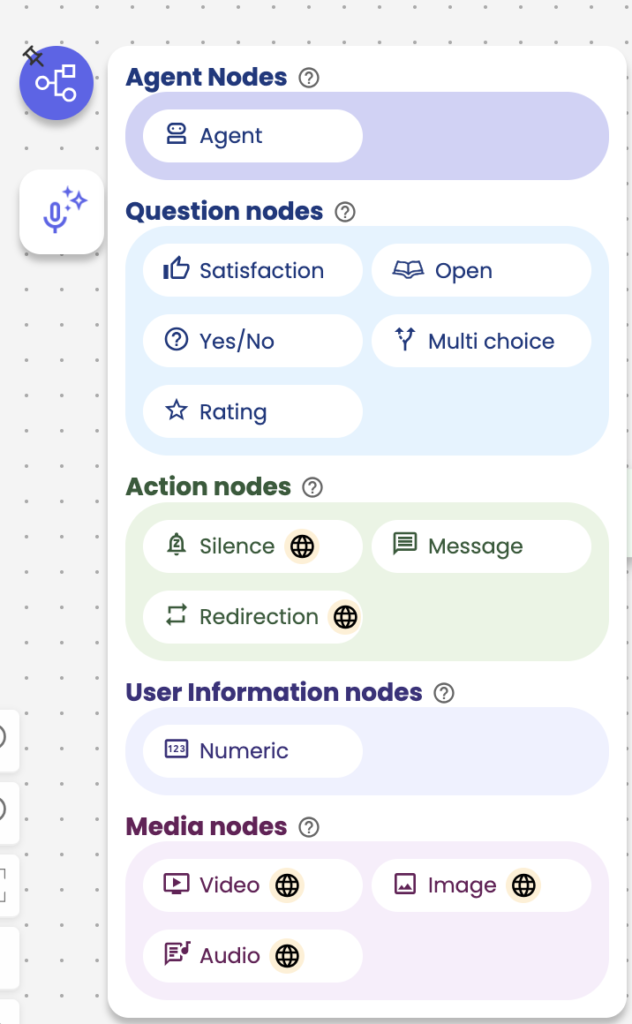
In this article, we will simply explain the different nodes which serve to build a campaign and their functionalities while giving examples of how to use them. All nodes are located on the sidebar of the studio as indicated in the photo below.
- Agent
Drag and drop this node to insert an AI Voice Agent in your campaign.
- Yes / No
It is used to prompt users to make a decision. Use it for questions that require a yes or no answer.
e.g. : “Would you like to continue the conversation?”
- Open
It is used to collect descriptive information or answers from users.
e.g. : “Do you have something to suggest?”
- Numeric
It is used to collect numeric data.
e.g. : “What’s your phone number?”
- Multi Choice
It helps present a set of options for the user to choose.
e.g. : “What color would you like on your T-shirt?”
- Satisfaction
It helps analyze the mood of the user during the campaign.
e.g. : “How are you doing today?”
- User Input
It helps collect typed information from the user as names, email addresses, etc.
e.g. : “Please enter your email address.”
- Message
It helps display messages or texts to the user. Use this element to inform or tell the user anything related to the campaign.
e.g. : “Your item has been added to the cart.”
- Redirection
It helps the user to navigate from one webpage to another by voice.
- Send Email
It helps send certain emails to notify the admin about any activity that has been conducted in the campaign. Since this is a functionality element, it will not appear to users. The element performs its activity meanwhile.
- Image
It helps present images to users as they are interacting with the campaign.
- Video
It helps present videos to users as they are interacting with the campaign.
- Audio
It helps to play a mp3 during a conversation.
N.B : mp3 files have to be hosted online, have an URL in https format and a valid SSL certificate.
- Silence
It helps to have a break of silence for a defined period of time during the conversation
- Search
It helps users to look for anything on your website using their voice. Use this element to enable users to look for any products or services on your website.
- Add to cart
It is used to add products to a user’s cart. If users are prompted to choose a product, use this element to add the selected product to their cart.